Go to the homepage and click the download button that corresponds to your operating system.
1.2 Run the program you just downloaded
On macOs::
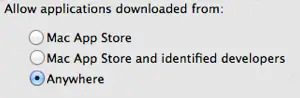
Open the Apple menu > System Preferences > Security & Privacy > General tab. Under Allow applications downloaded from select Anywhere:
Download and install the app. To launch the app simply Ctrl-click on its icon > Open.
On Windows:
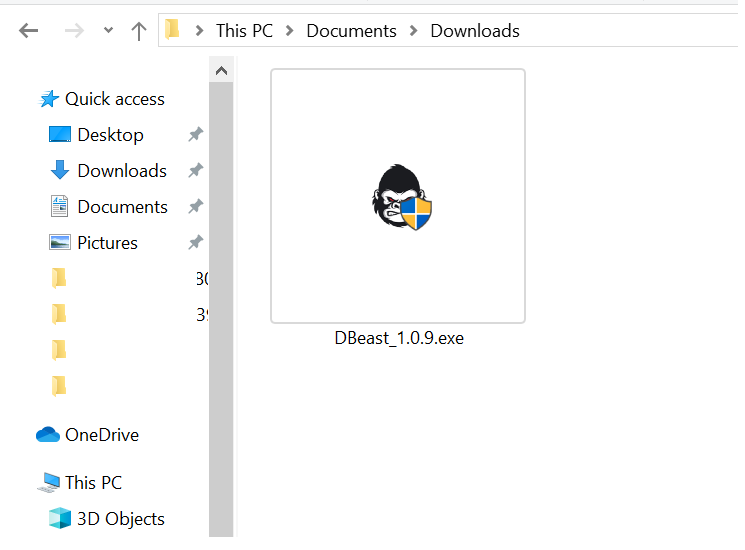
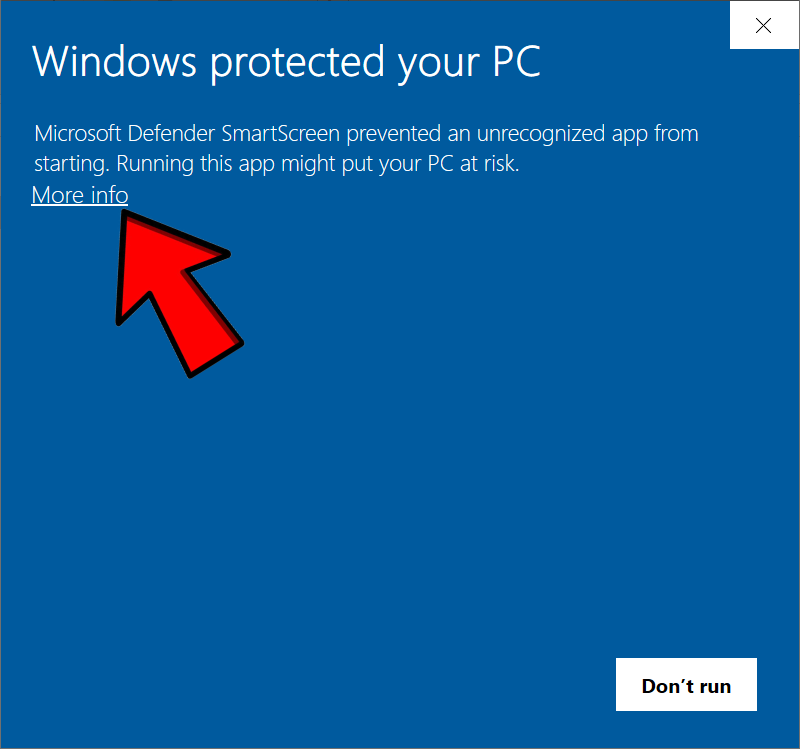
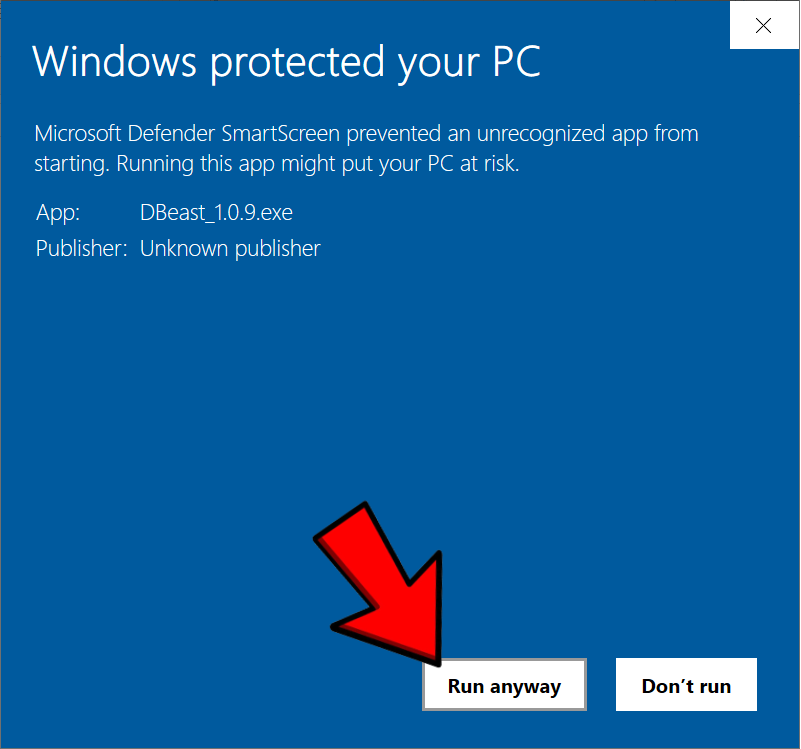
In your default download folder, on your computer, you will find a DBeast_1.0.9.exe file. Double-click it to begin the installation process.
When prompted, confirm with YES. This is standard Windowssecurity procedure for applications not downloaded from their store.
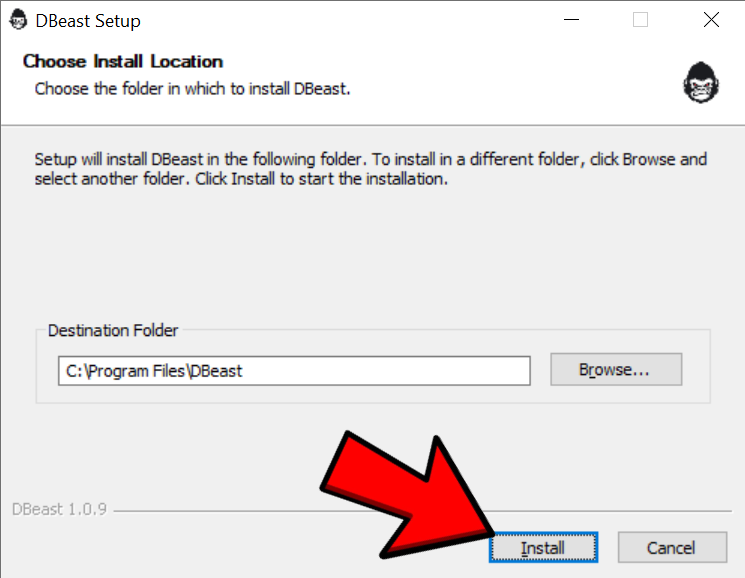
1.3 Choose installation directory
If you don’t know what installation directory to select, just leave the default one. Click Install.
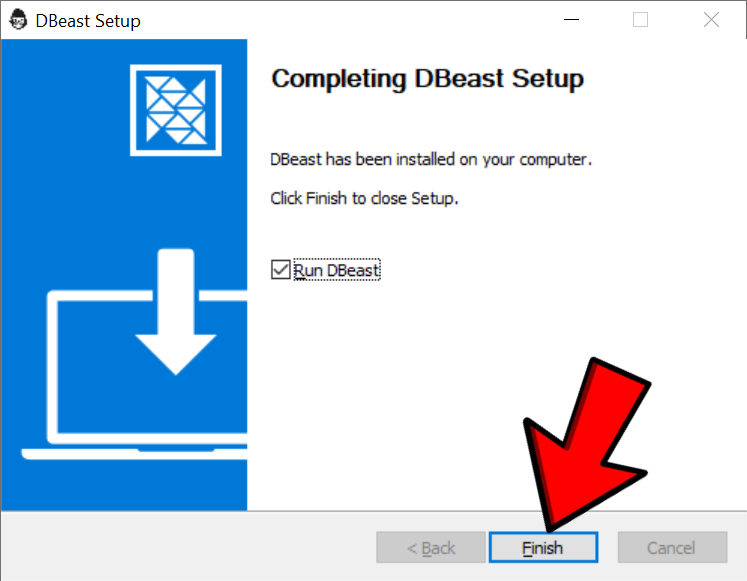
1.4 Click "Finish" to complete the installation procedure
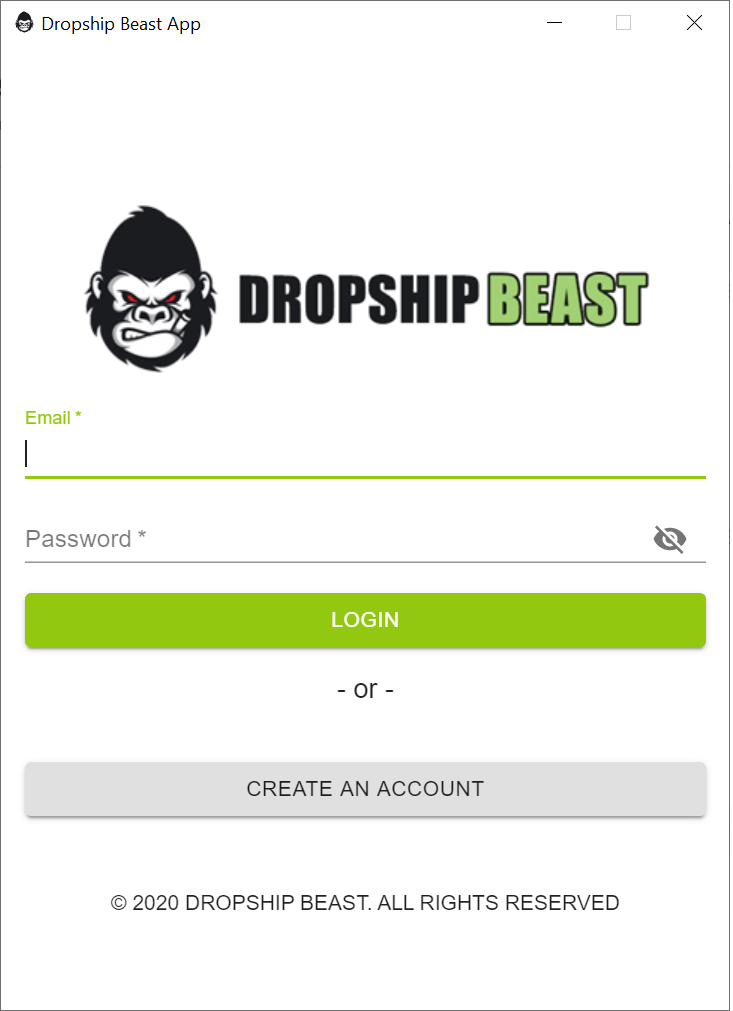
1.5 Launch Dropship Beast App
If you left “Run Dropship Beast” option checked, Dropship Beast will now start. Otherwise, find the Dropship Beast.exe icon on your Desktop and double-click it. A third option is to go to the installation directory (default is C:\Program Files\Dropship Beast) and find the Dropship Beast.exe file there.
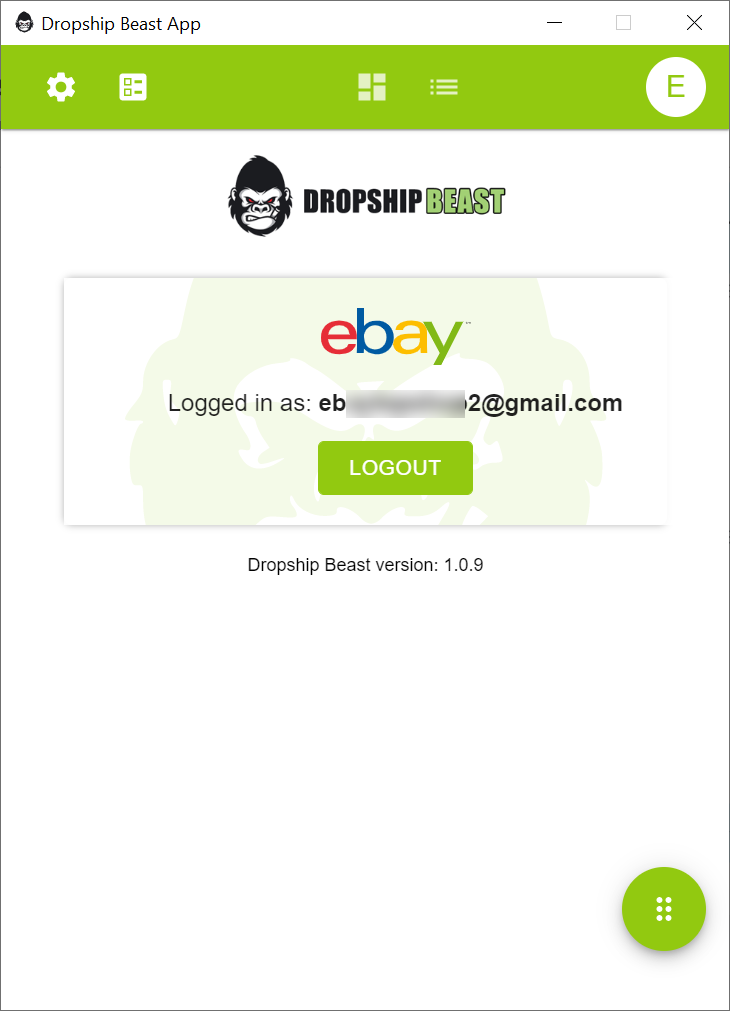
Here you need to login in your DropshipBeast.com account. Use the same email and password like on website.