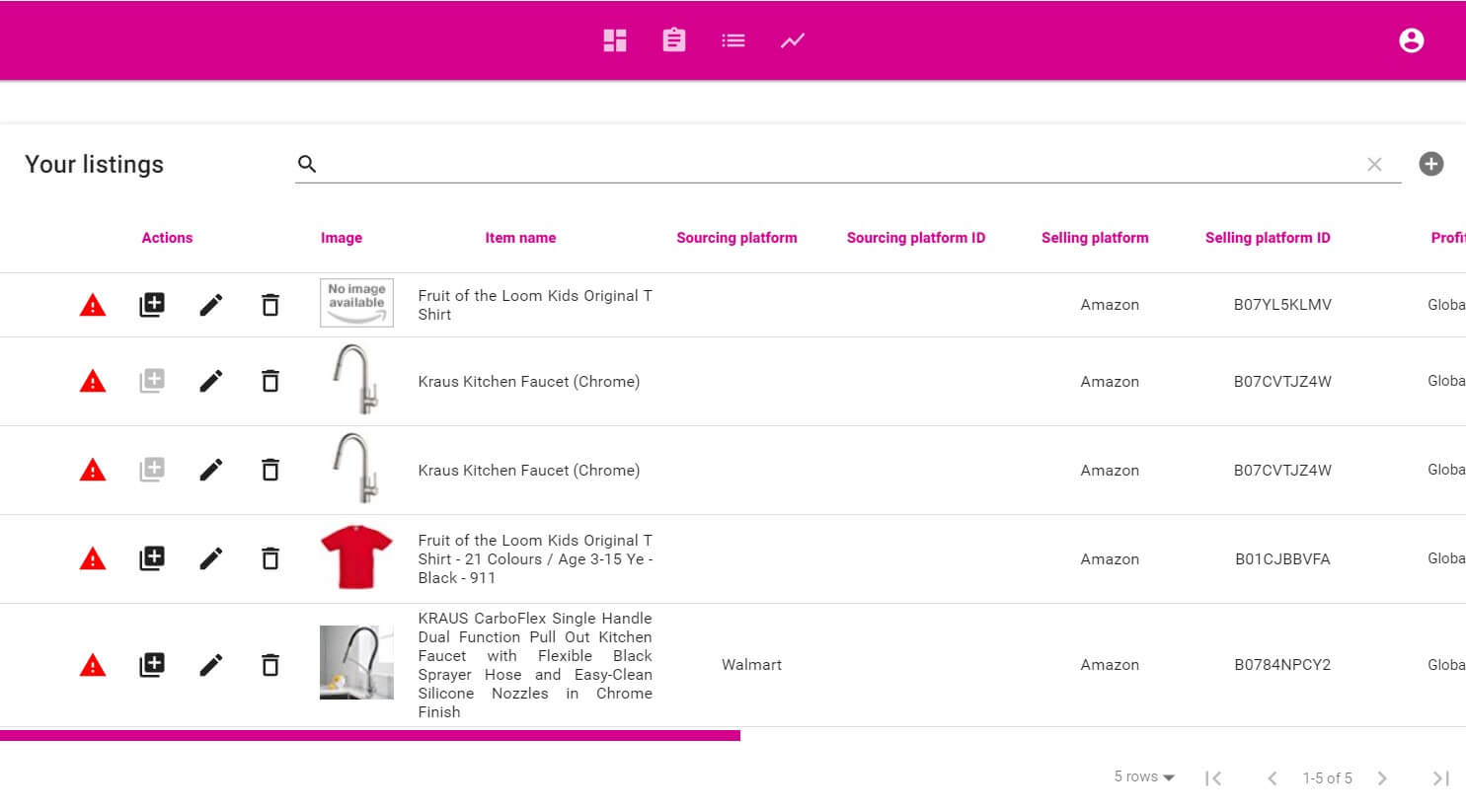
If you just ran the product syncer and Dropship Beast downloaded all of your listed products to your local Dropship Beast database, your ‘Listings’ page will look like this
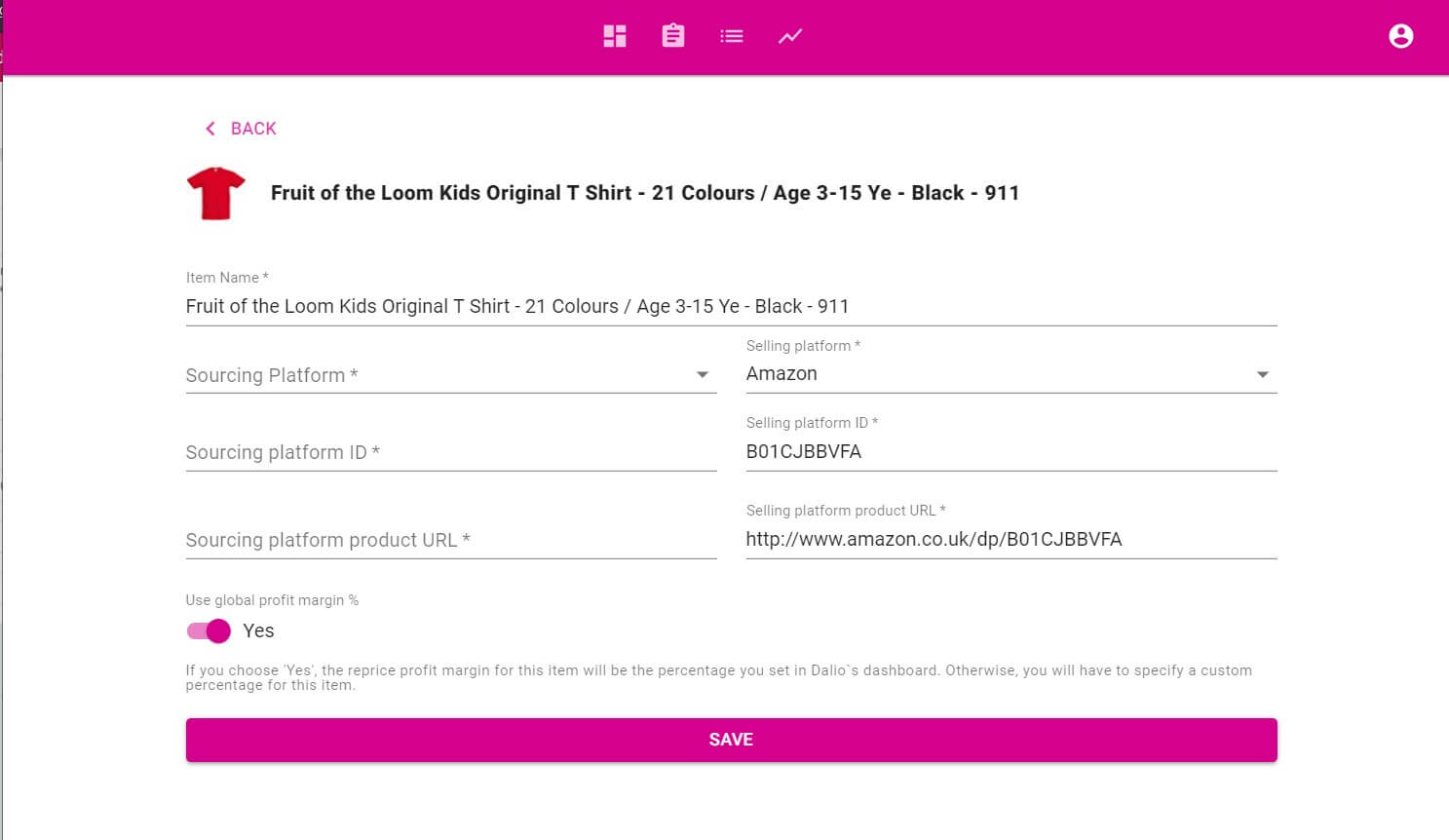
The ‘Edit listing’ page will open
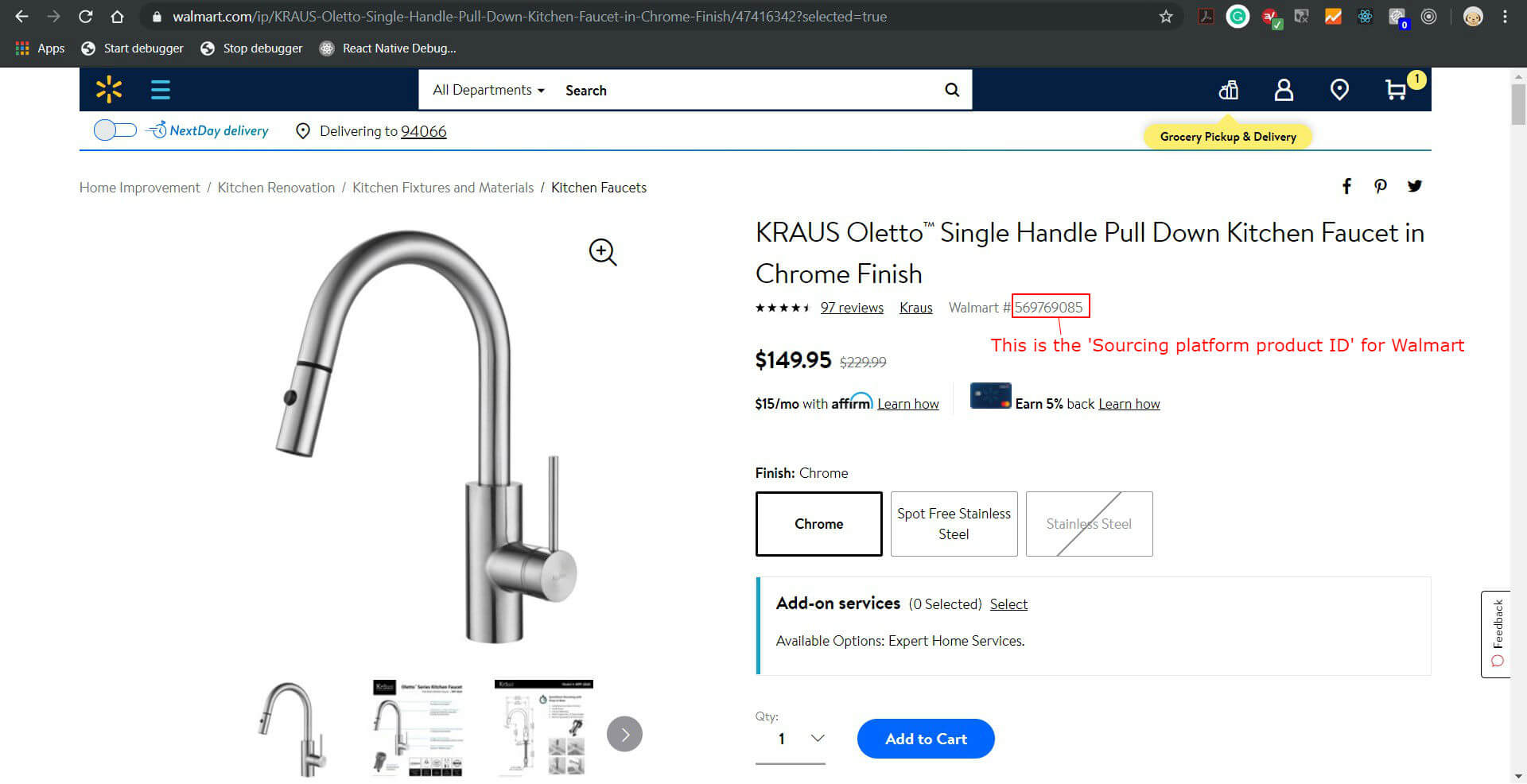
There are always three pieces of data you need in order to link a product to a source:
Here is an example of what information you need in order to link to a Walmart product.
In order to link a listing to an Amazon product, all the information you need is in the URL of that product.
Let`s take this URL for example – https://www.amazon.co.uk/gp/product/B018S34NLW
The ‘Sourcing platform product ID’ is the code at the end of the URL – B018S34NLW
In order to link a listing to an AliEpress product, all the information you need is in the URL of that product.
Let`s take this URL for example – https://www.aliexpress.com/item/32814273888.html
The ‘Sourcing platform product ID’ is the code at the end of the URL – 32814273888

If you decided to add each listing manually, the process to link them to a source product is exactly the same as the above.
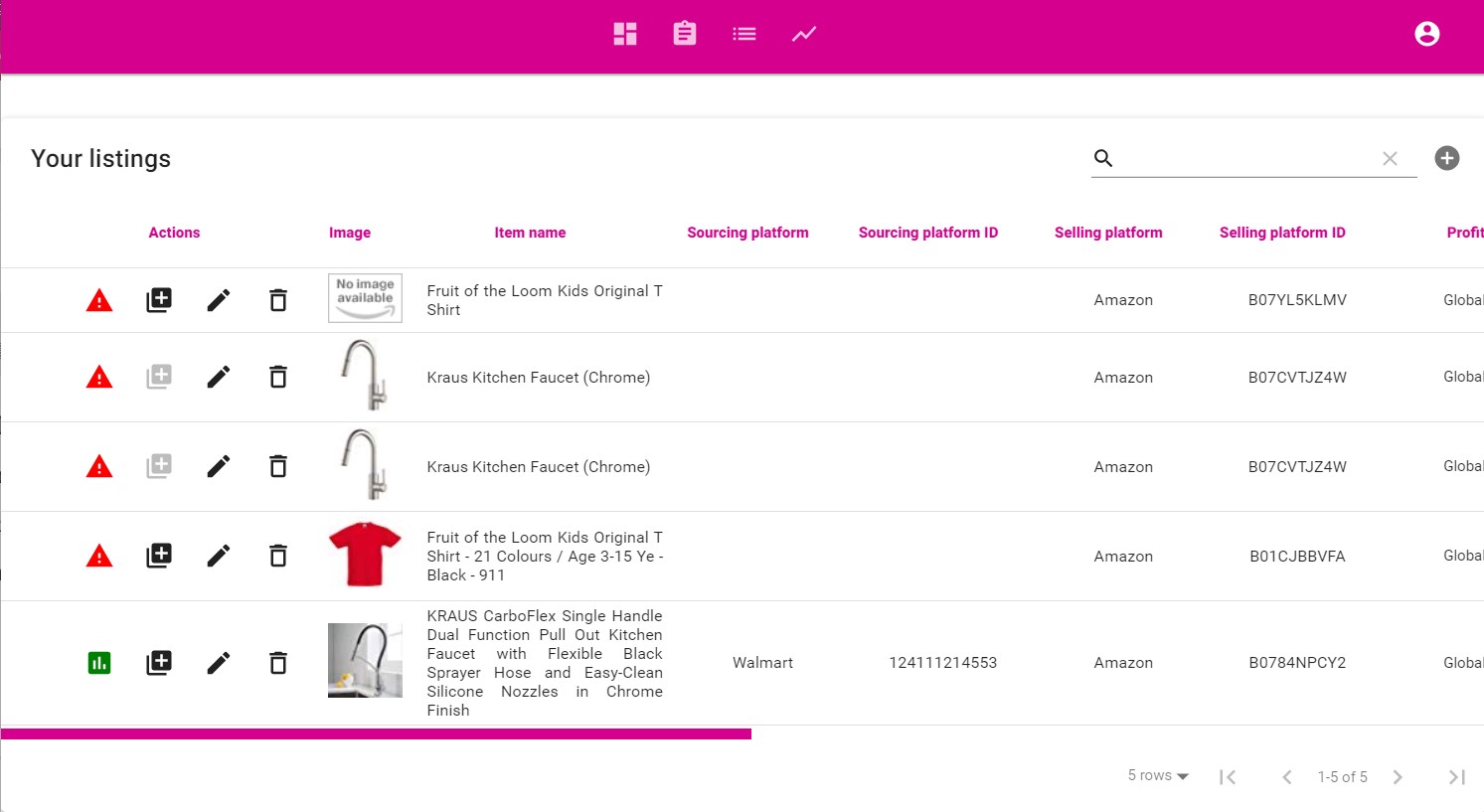
If you successfuly added the needed information, your listing will have a green icon on the left.
You can click on the green ‘Info’ button and get an overview of the listing`s information.