2 Required Ebay Settings

2.1 Make sure you have 'Custom SKU' column enabled

1.Go to your ebay seller profile.
2. Open the “Manage Orders” page. 
3. Click ‘Customize’ in the upper right corner , above the orders table.
4. Find and select ‘Custom SKU’ column. Enable it, click Save.

The Custom SKU column needs to be shown in your Manage Orders page for the Dropship Beast software to function properly.

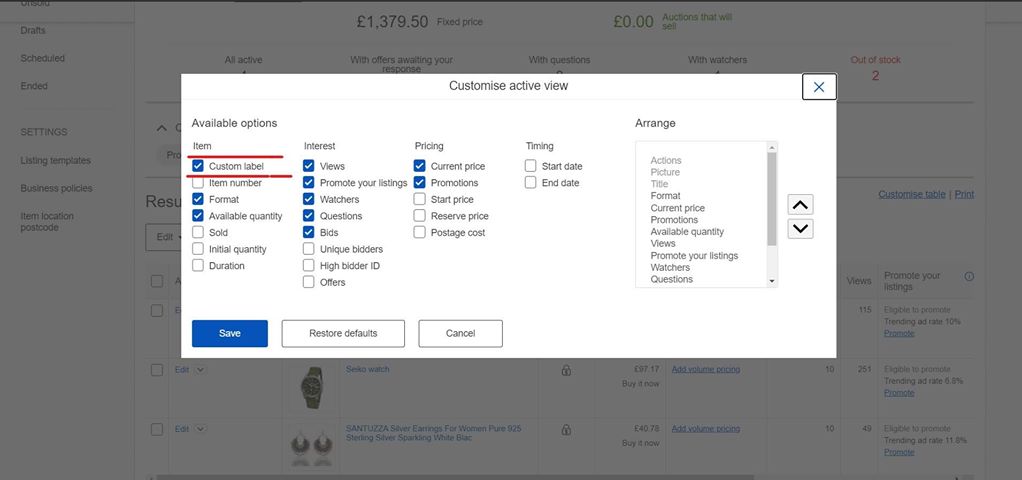
dbapp custom sku column ebay

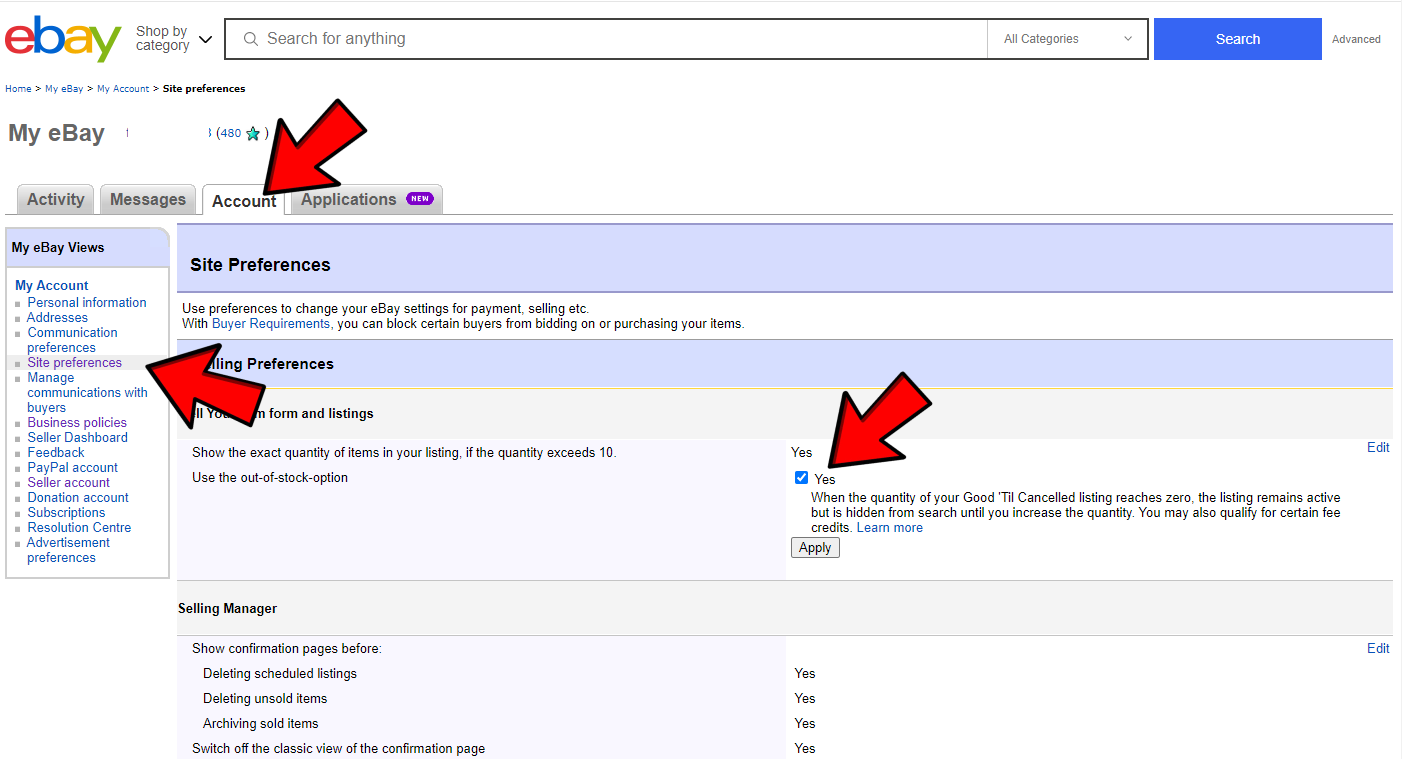
Here on Account -> Site Preferencies you need to set the checkbox for Use the out-of-stock option! 

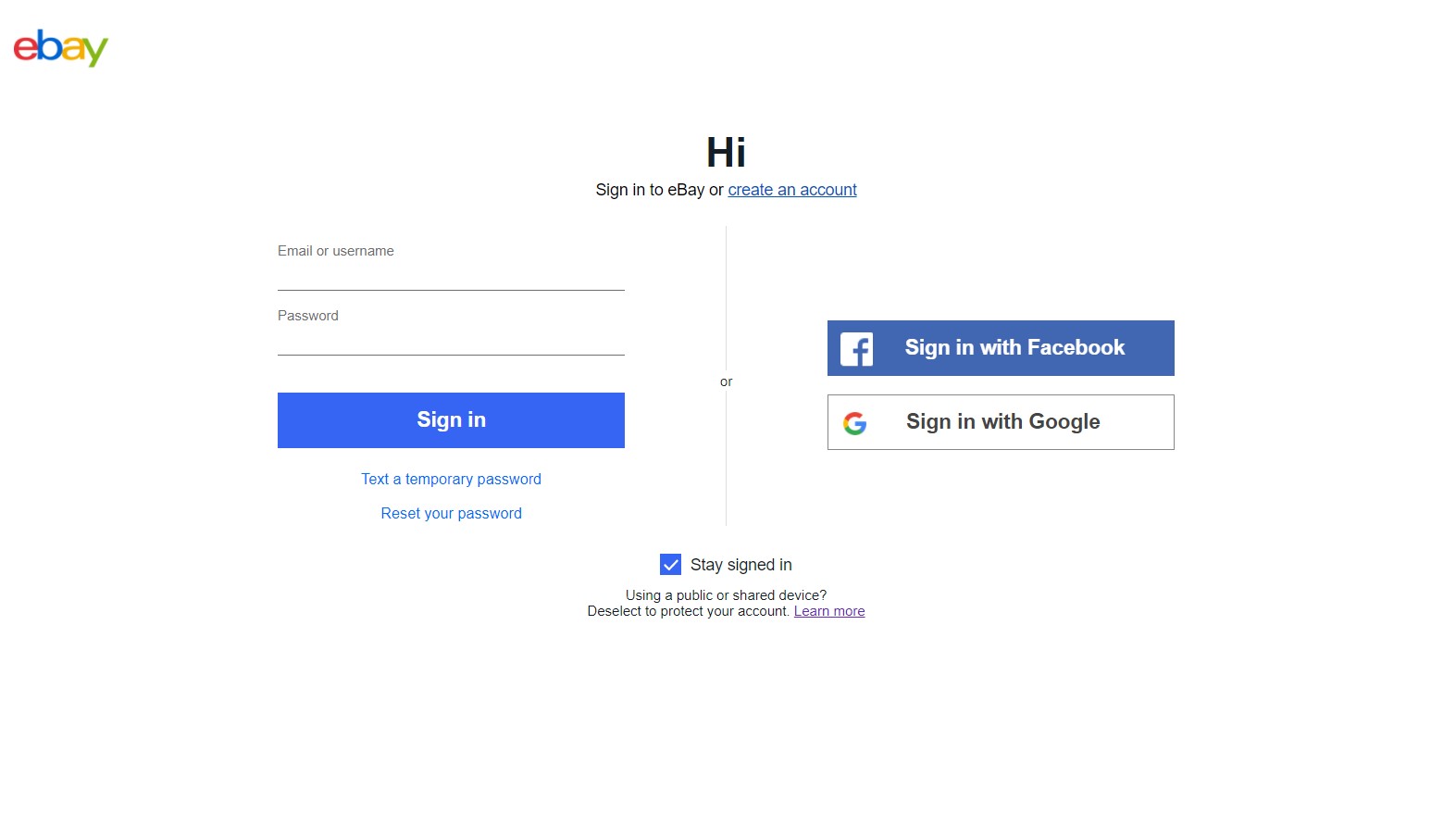
This will launch a Chrome browser and load the Ebay Seller Hub login page.

IMPORTANT: You need to log in separately for every marketplace you want to access

2.2.2 Sign in with your Ebay Seller Hub E-mail and Password

You have to sign in into the Chrome browser that just opened automatically from the app !

Make sure you tick the ‘Stay signed in’ option

Important: Dropship Beast does not store your e-mail and password, it does not upload them to our servers and we do not have access to them.

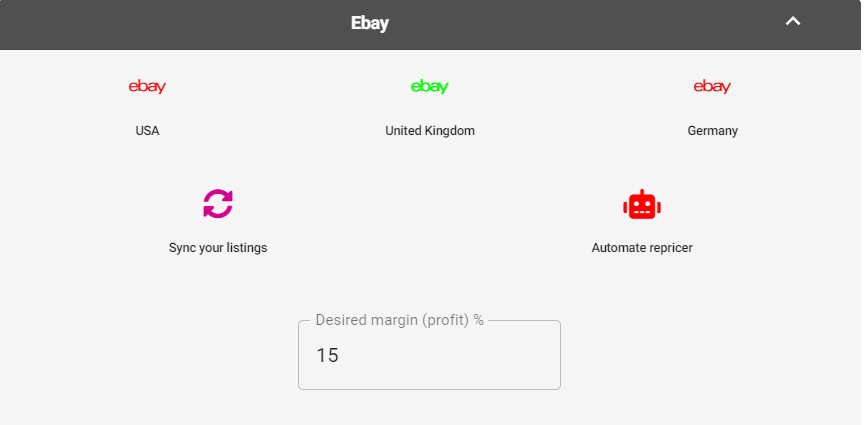
2.2.3 After a successful login, the Ebay icon will have a green status

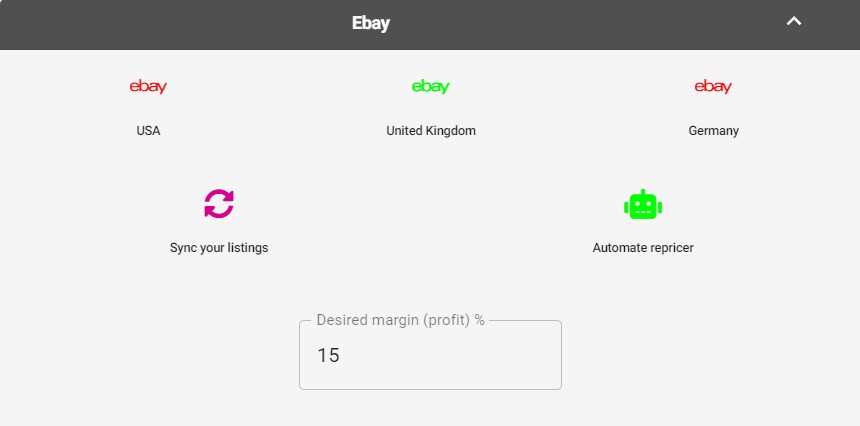
The Chrome browser will close itself automatically and Dropship Beast will now have a green status icon next to the Ebay account on your Dashboard.

4. Click on the robot icon in order to automate the repricer.

The reprice percentage setting determines how much lower/higher the price will be set to, if needed. (this is only for testing purposes in the BETA version of Dropship Beast)